
VLC Remote
Hobbyist Software LtdVideo Players & Editors
4.5342.00 Reviews
- Version
- 5.60 (5138)
- Installs
- 50.00K
- Age Rating
- Everyone
Screenshots
Our Review of VLC Remote
 Analysis by Appyee
Have you ever been settled on the couch with a film playing on a computer across the room, only to need a pause or volume change? That small inconvenience is the problem VLC Remote is meant to solve. It turns a phone into a handheld controller for VLC on a Mac, PC, or Linux computer, so you can manage playback without getting up. I find that simple idea most useful in a shared room, where the person closest to the keyboard is not always the person choosing what plays.
When a shared screen needs a little coordination
Imagine a family movie night: one person has picked the film, someone else wants the volume lower, and another has just remembered they need to step away. Rather than passing a laptop around or calling across the room for someone to pause it, a phone can handle the basic playback decisions. It is a modest convenience, but it can make a shared screen feel less like a computer session and more like watching together.
The same arrangement suits a household that uses a computer for background music. One person can start a playlist, while someone in the room can pause or adjust playback when a call starts. That is where a remote is more useful than walking back and forth to the desk. It is not a household management tool, though: it does not replace agreeing on what to watch or who gets to control the shared computer.
Set up the computer before settling in
The phone is only one part of the setup; VLC has to be running on the computer you want to control, and both devices need to be reachable on the same Wi-Fi network. I would test the connection before guests arrive or everyone gets comfortable. That quick check helps distinguish a control problem from a film or audio problem, and avoids discovering a network mismatch halfway through movie night.
For a shared computer, it is worth deciding in advance which machine is the intended player. If there is more than one computer in the home, make sure you are connecting to the one attached to the television or speakers. A remote is only convenient when its target is clear. This is especially relevant when a work laptop, a media computer, and personal devices are all present on the same network.
Because the app is a controller rather than the player itself, it should not be treated as a way to send a video from the phone to a television. The media playback happens through VLC on the computer. That distinction matters if what you really want is phone-to-TV casting or a way to play files stored on a mobile device; a casting feature or a dedicated media player may suit that job better.
Who gets to control playback?
In a room with several people, having a remote on one phone can reduce interruptions, but it can also concentrate control in that person’s hands. I would keep the arrangement simple: agree who is choosing the playlist or film, then let others ask for a pause or volume change. The app does not settle disagreements or provide a family-control system; coordination still comes from the people watching.
There is also a practical boundary between controlling playback and sharing access to the computer. A phone remote is convenient for someone who is already meant to manage the media, but it is not a substitute for separate computer accounts or household privacy settings. If you are setting it up in a shared home, think about which computer is connected and who should be able to operate it, rather than assuming the app creates account-level separation.
A useful age context, not a supervision feature
The app carries an Everyone age rating, which makes its stated age context broad. That does not tell you what content will be played through VLC: the computer’s media library determines that. For a household with children, I would make content choices and computer access decisions separately instead of treating the rating as a filter on the videos or music available from the host computer.
That distinction is easy to miss because the phone is the visible control. The media and its organization remain on the computer, so the person setting up a shared viewing space should consider the library and the computer’s usual access boundaries. If you need parental controls, restricted profiles, or a curated children’s library, use the relevant controls on the computer or choose a media setup built around those needs.
Getting Started with VLC Remote
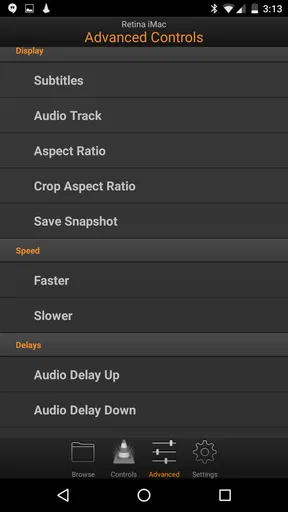
First things first, setting up VLC Remote is a breeze. It’s available for both Android and iOS, which is a big plus if you’re like me and constantly switching between devices. The app guides you through the setup process with clear, straightforward instructions. It connects via Wi-Fi, so make sure both your phone and the computer running VLC are on the same network. I was pleasantly surprised at how quickly it connected without any hiccups.
Features You’ll Love
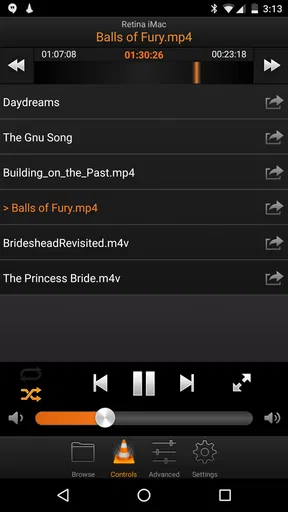
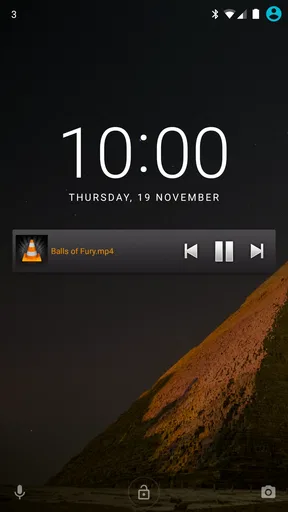
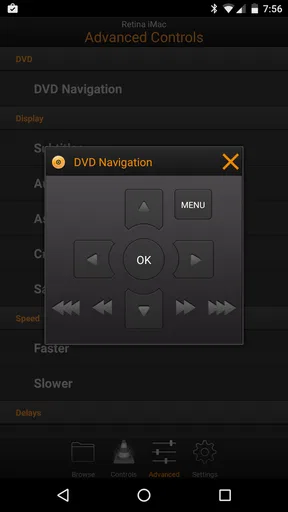
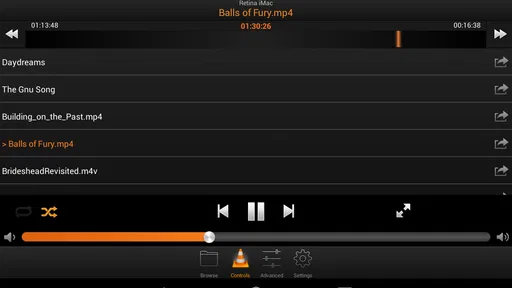
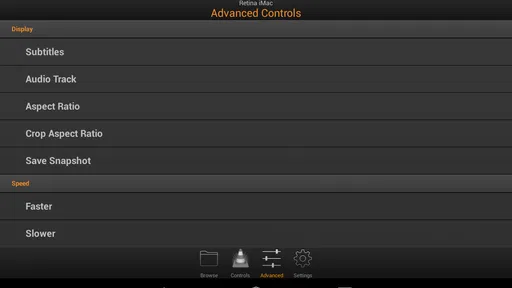
Once you’re set up, the app opens up a world of convenience. You can control playback, browse your media files, and even adjust volume without moving an inch. The interface is slick, intuitive, and mirrors the familiar VLC layout, which means minimal learning curve.
The strongest case for a remote is not a complicated one: it puts common playback controls where I already have my phone. If I am watching from a sofa or using a computer as a music source across the room, reaching for a handheld device is easier than returning to the keyboard. It is also a focused tool. It does not need to replace VLC or reorganize the library; its value is in making the existing computer-based setup easier to operate from a distance.
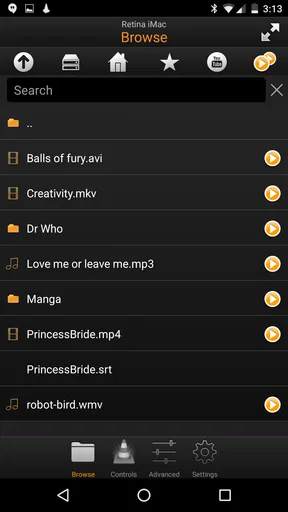
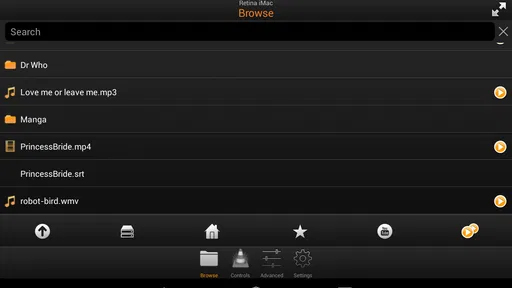
One feature that stands out is the ability to browse through your file directories directly from the app. This means you can navigate through your library without having to touch your computer. I found this especially useful when hosting a movie night and needing to switch movies quickly.
That file browsing can be especially helpful when the computer’s media is arranged in folders rather than presented as a single, carefully maintained playlist. Before guests arrive, I would still make sure the likely choices are easy to recognize. Browsing from a phone saves a trip to the computer, but it does not make a messy folder structure easier to understand; clear file names and a little preparation matter more when everyone is waiting.
Another cool feature is the playlist management. You can create and manage playlists directly from your phone, which is perfect for those long binge-watching sessions or when you’re DJing a party from your laptop.
For music, a playlist is a useful way to keep a shared session moving without returning to the computer after every track. For video, I would use a playlist when I already know the order I want, but browse the files when the group is deciding as it goes. That small choice makes the phone interface less fiddly: prepare a sequence for predictable listening, and leave room to browse for a more spontaneous movie night.
In Use: Real-Life Scenarios
Let’s talk about how VLC Remote fits into everyday life. Picture this: You’re hosting a party, and the music is pumping. But every time someone requests a song change, you have to elbow your way through the crowd to your laptop. With VLC Remote, you just whip out your phone and make the switch from wherever you are.
Or maybe it’s a lazy Sunday, and you’re settled in bed watching your favorite series. You can adjust the volume or skip the episode without leaving your comfy spot. The app genuinely enhances your media experience by making it seamless and more enjoyable.
These examples also show the app’s limits. It is a good fit when VLC is already the computer’s playback choice and the phone is nearby. It is less compelling if you watch on a smart TV with its own remote, use a streaming service’s built-in controls, or mainly need to cast from a phone. Those options keep control closer to the device or service doing the playback. This app’s advantage is specifically the distance between you and a computer running VLC.
Performance and Reliability
In terms of performance, I’ve found VLC Remote to be incredibly reliable. It works smoothly without lag, which is crucial when you’re in the middle of a gripping scene. The app’s response time is quick, making the experience feel almost instantaneous.
However, there were a couple of times when the app struggled to reconnect after a network drop. But, in all honesty, these instances were rare and easily fixed by restarting the app.
If a connection drops, I would first check that the phone and computer are still on the same Wi-Fi network and that VLC is open on the intended machine. Restarting the app is a reasonable next step if the remote has stopped responding. The useful trade-off is that this setup depends on the home network; a conventional hardware remote does not need to find a computer over Wi-Fi, while VLC Remote is specifically valuable when the player is a computer elsewhere in the room.
Hobbyist Software Ltd makes this paid video-player companion, priced at $2.99. It has a 4.5 average from around 2,100 ratings, with over 50,000 installs. The current release is version 5.58 (4978), and the app dates back to May 10, 2010. I see the purchase as easiest to justify for someone who regularly uses VLC on a computer from across the room; if you only occasionally play a file at a desk, the convenience may not be worth paying for.
Final Thoughts
All in all, VLC Remote is a must-have for anyone who uses VLC media player regularly. It adds a level of convenience that once you experience, you’ll wonder how you ever lived without it. The app is user-friendly, packed with useful features, and enhances the way you interact with your media.
I would recommend it most to people who have a clear computer-based media setup: a laptop connected to a screen, a desktop feeding speakers, or a home computer that the household uses for local files and playlists. It is also a sensible choice when the person controlling playback wants to stay in the room and let others keep watching or listening. If your main need is casting, streaming-service control, or child-specific content restrictions, I would look at those solutions instead.
The Everyone rating is reassuring as an indication of the app’s audience, but it should not be confused with a guarantee about the media selected on the computer. Likewise, a phone acting as a remote does not create separate household profiles. I would treat the app as a practical playback convenience, keep control of the host computer and its library in mind, and use the computer’s own arrangements for privacy and age-appropriate access.
If you’re all about making your digital life easier, give VLC Remote a try. You can find download links on our website. Trust me, your lazy Sundays will thank you!
Verdict
Strengths of VLC Remote
- Easy setup with straightforward instructions.
- Seamless integration with VLC media player.
- Supports multiple VLC instances simultaneously.
- Customizable controls for personalized experience.
- Responsive and intuitive user interface.
Limitations of VLC Remote
- Limited functionality on older devices.
- Some features require in-app purchases.
- Occasional connectivity issues reported.
- User interface lacks modern design elements.
- No support for other media players.
Other Releases by Hobbyist Software Ltd
View All
VLC Streamer
Video Players & Editors4.0
Similar Picks in This Category
View All
Google TV
Google LLC3.9

iTunes
Apple4.7

YouTube
Google LLC3.8

MX Player
Amazon Mobile LLC4.2

CapCut - Video Editor
Bytedance Pte. Ltd.3.5

PLAYit-All in One Video Player
PLAYIT TECHNOLOGY PTE. LTD.4.5
Frequently Asked Questions
What is VLC Remote and how does it work?
VLC Remote is an application that allows you to control VLC Media Player on your computer from your smartphone or tablet. By connecting your device to the same network as your computer, you can use VLC Remote to play, pause, skip tracks, and adjust volume. This transforms your mobile device into a convenient remote control for your media player.
Is VLC Remote compatible with all operating systems?
VLC Remote is compatible with both Android and iOS devices. It works with VLC Media Player running on Windows, Mac, or Linux. As long as your smartphone or tablet is on the same Wi-Fi network as your computer, you can use the app to control VLC remotely. Ensure you have the latest VLC player installed for optimal performance.
Do I need any additional software to use VLC Remote?
To use VLC Remote, you'll need to have VLC Media Player installed on your computer. Additionally, you may need to configure some settings within VLC to allow remote control. The app provides a setup guide to help you through this process, ensuring a smooth connection between your devices.
Is VLC Remote user-friendly for beginners?
Yes, VLC Remote is designed with a user-friendly interface that makes it simple for beginners to navigate. The app includes a setup wizard that guides new users through the initial configuration process. Once connected, the controls are intuitive, allowing users to manage their media easily without technical expertise.
Are there any costs associated with using VLC Remote?
VLC Remote offers a free version with essential features for controlling VLC Media Player. However, there is also a premium version available for purchase, which unlocks additional features such as custom playlists, advanced controls, and an ad-free experience. The free version is sufficient for basic use, but the premium version enhances functionality.
